
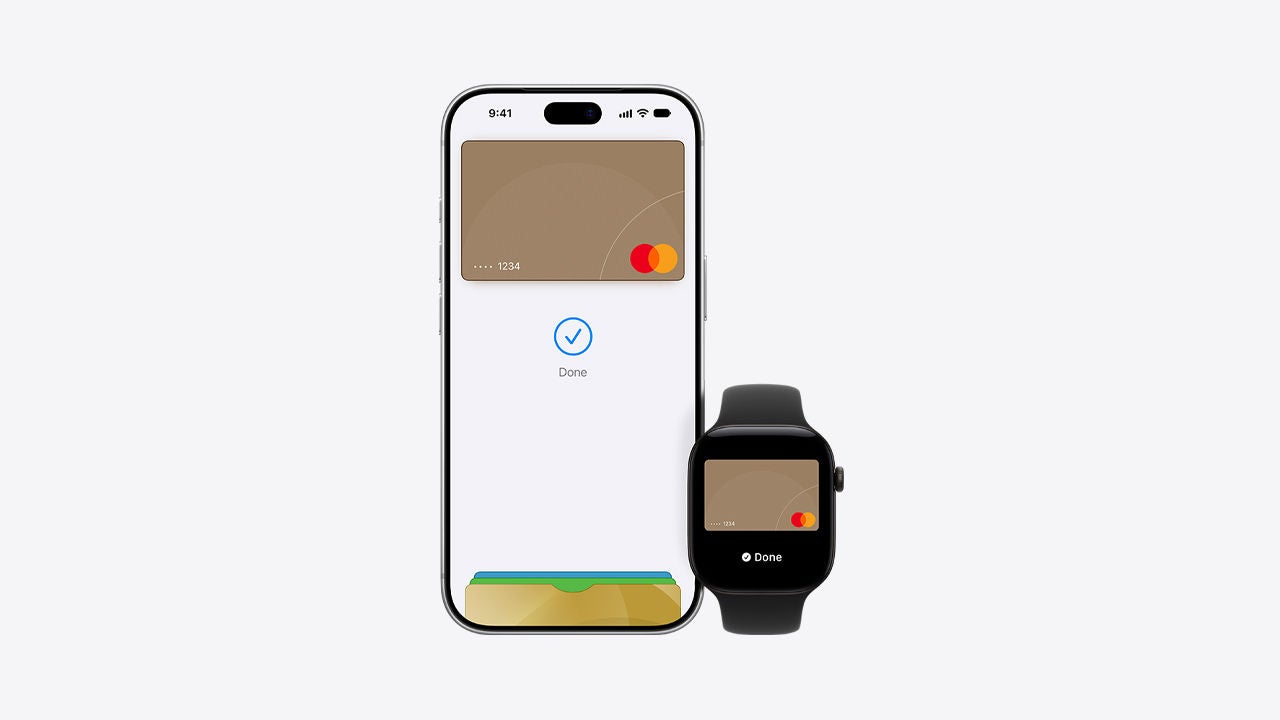
 or the contactless payment symbol at checkout and pay with your Mastercard.◊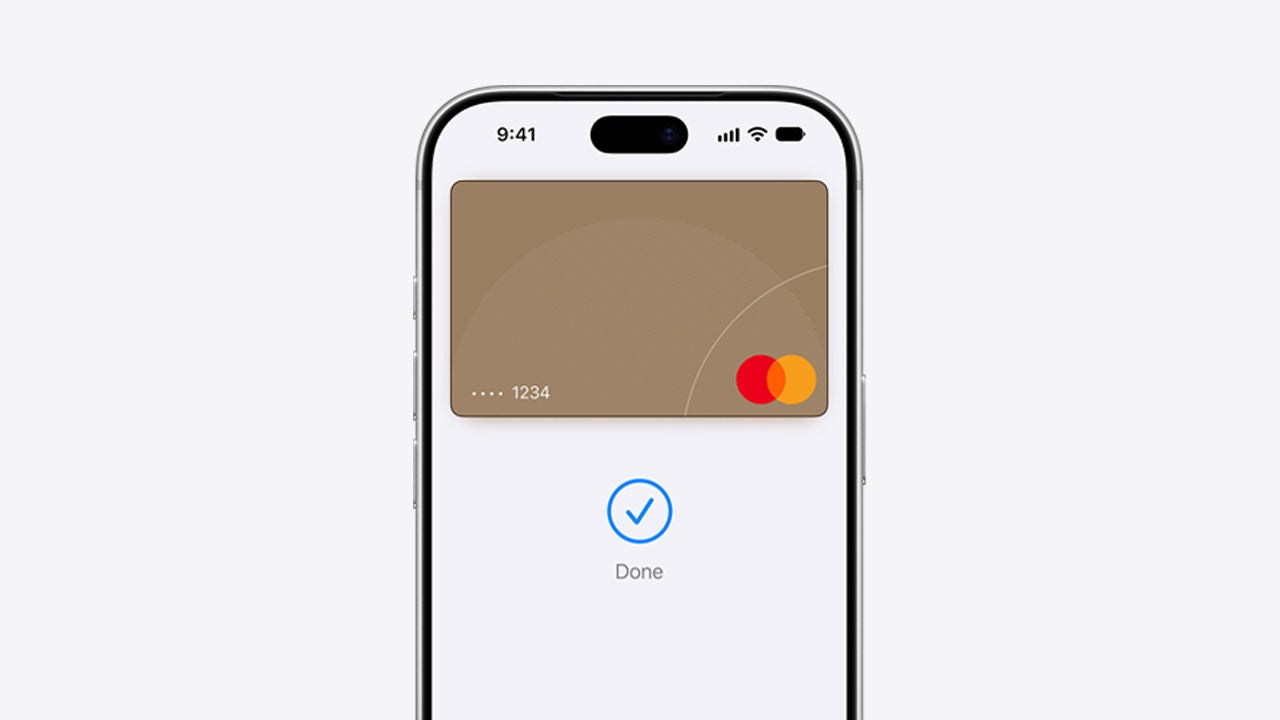
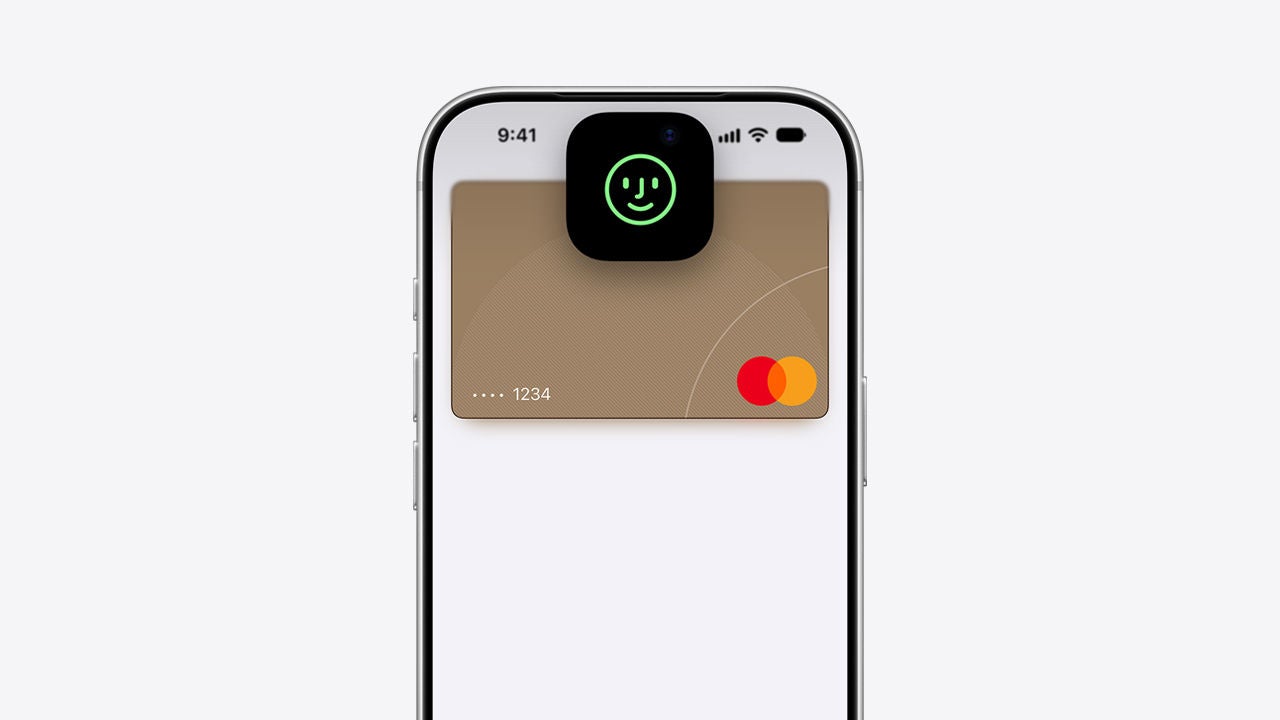


To setup Apple Pay you need:
· an iPhone with iOS 18 or later
· an iPad with iPadOS 18 or later
· an Apple Watch with watchOS 11 or later

With Apple Pay, use your Mastercard on your iPhone and Apple Watch — in store, online or in apps.
When you use your Mastercard with Apple Pay, you'll earn the benefits and rewards you love — just like you would with your physical card.
You can add your Axis Bank Mastercard credit card to Apple Wallet.
· Using the Apple Wallet App:
Open Apple Wallet, click +, select Debit or Credit card, there are 2 ways to add card:
1. Tap your card on back of your iPhone and follow the steps
2. Scan or enter Add card manually: Enter your card information (e.g. card number, cardholder name, expiration date, ) as prompted and follow the steps to complete adding the card to Apple Wallet.
· Using Mobile Banking App of Issuer Bank: Log in to the Mobile Banking App, Go to Credit Card section, find the Mastercard card you would like to add then tap on Add to Apple Wallet button and follow the steps.
Compatible devices and OS versions are updated by Apple from time to time. For the current list of compatible iPhone and Apple Watch models, see: https://support.apple.com/en-in/102896
You can confirm your card has been added to Apple Wallet successfully if:
· Your card art appears on the Apple Wallet app screen.
· You received an SMS and Email notification from your Bank and app notification from Apple confirming your card has been added successfully to Apple Wallet.
You may reach out to Apple Pay enabled Bank to get the Mastercard Card issued.
Check if your device and card is supported and is eligible to be used with Apple Pay. Contact your bank if you are unable to add your card to Apple Pay.
On your iPhone, open the Wallet app, select the relevant card, tap the  icon to view the card details, then scroll down and select "Remove Card." For more details, see Apple's instructions here: https://support.apple.com/HT205583
Yes, you can re-provision the card.
No — each device holds its own separate token.
Apple Pay on Apple Watch is set up through the Apple Wallet app on an iPhone paired to the Apple Watch. If the Apple Watch is no longer paired with the iPhone, the card added to Apple Watch will be deleted.
To setup Apple Pay you need:
· an iPhone with iOS 18 or later
· an iPad with iPadOS 18 or later
· an Apple Watch with watchOS 11 or later
You can use Apple Pay wherever contactless payments are accepted or you see the contactless symbol, or Apple Pay logo below.
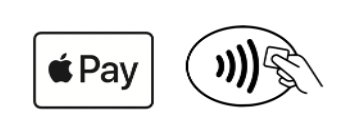
For more details, you can make secure purchases in stores, within selected apps and on participating websites.
See https://support.apple.com/HT201239#stores to learn how to pay in stores.
See https://support.apple.com/HT201239#inapp to learn how to pay in apps.
Depending on the verification method you've set up on your device, you can verify your payment using Face ID, Touch ID, or your passcode.
No, there is no transaction limit when using Apple Pay.
Sign in to icloud.com/find using the same Apple ID linked to your device or use the "Find My" app on another Apple device, to locate your device and mark it as lost. This will remotely lock the device and disable Apple Pay.
When you mark your device as lost, all cards added to Apple Wallet are suspended. If you locate your device, enter your passcode to unlock it, then enter your Apple ID password to reactivate the suspended cards. If you've erased your device completely, you'll need to add the cards back in again.