Published: May 23, 2024 | Updated: June 7, 2024
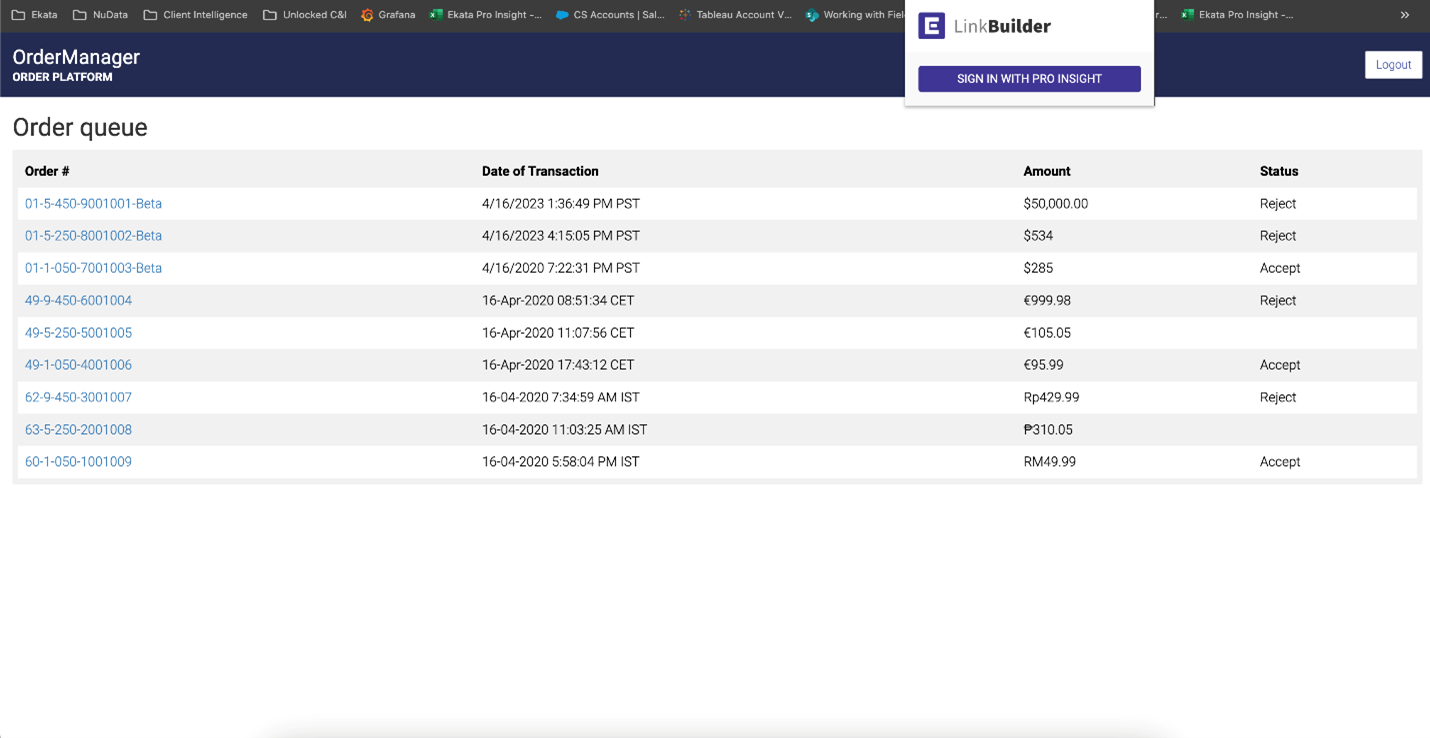
Follow these instructions to properly install our Deep Link Builder.
Please note: this requires using Chrome as the main browser.
To download the extension, simply click on the link below or follow the steps to access it via the Chrome menu.
1. Click on “Create/edit your team’s template” to create your template and select the view you want.
2. Or choose from the following display options:
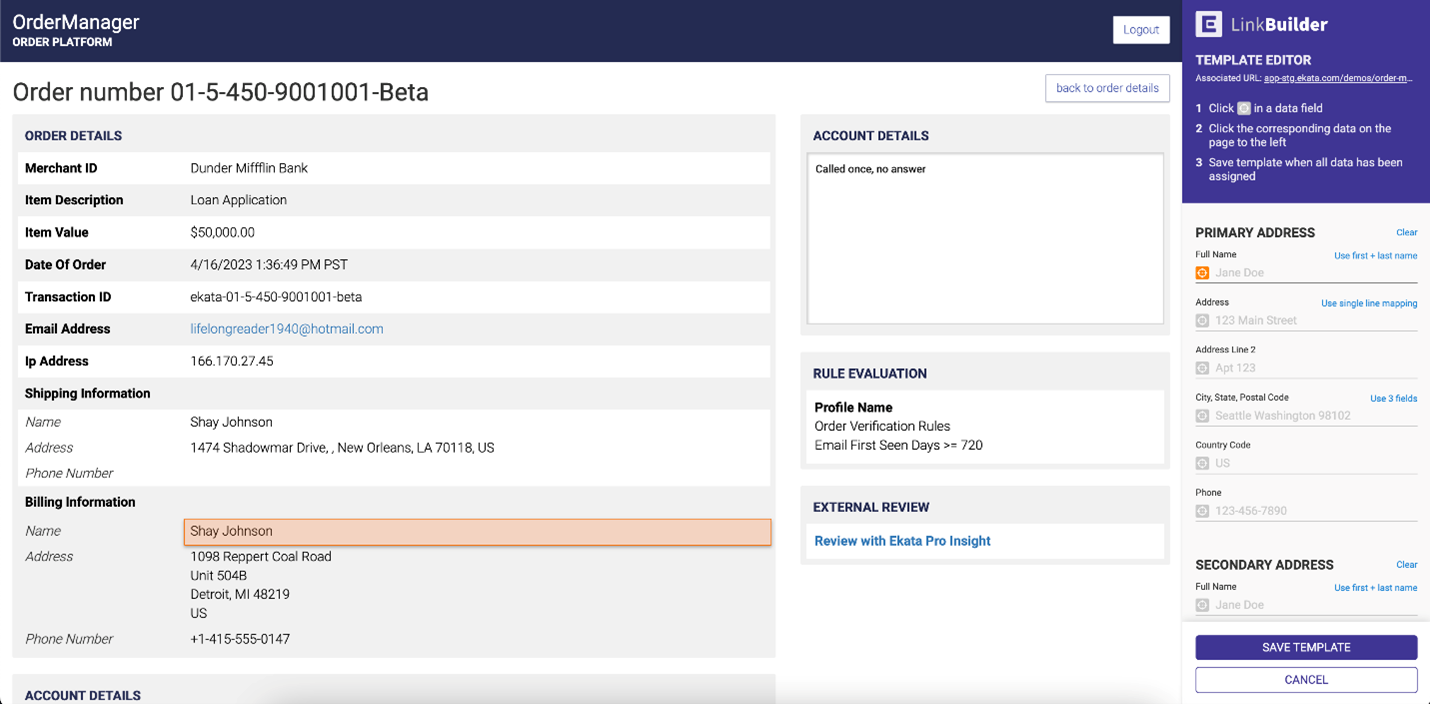
3. Once you have selected your display option, follow the “Template Editor” directions:
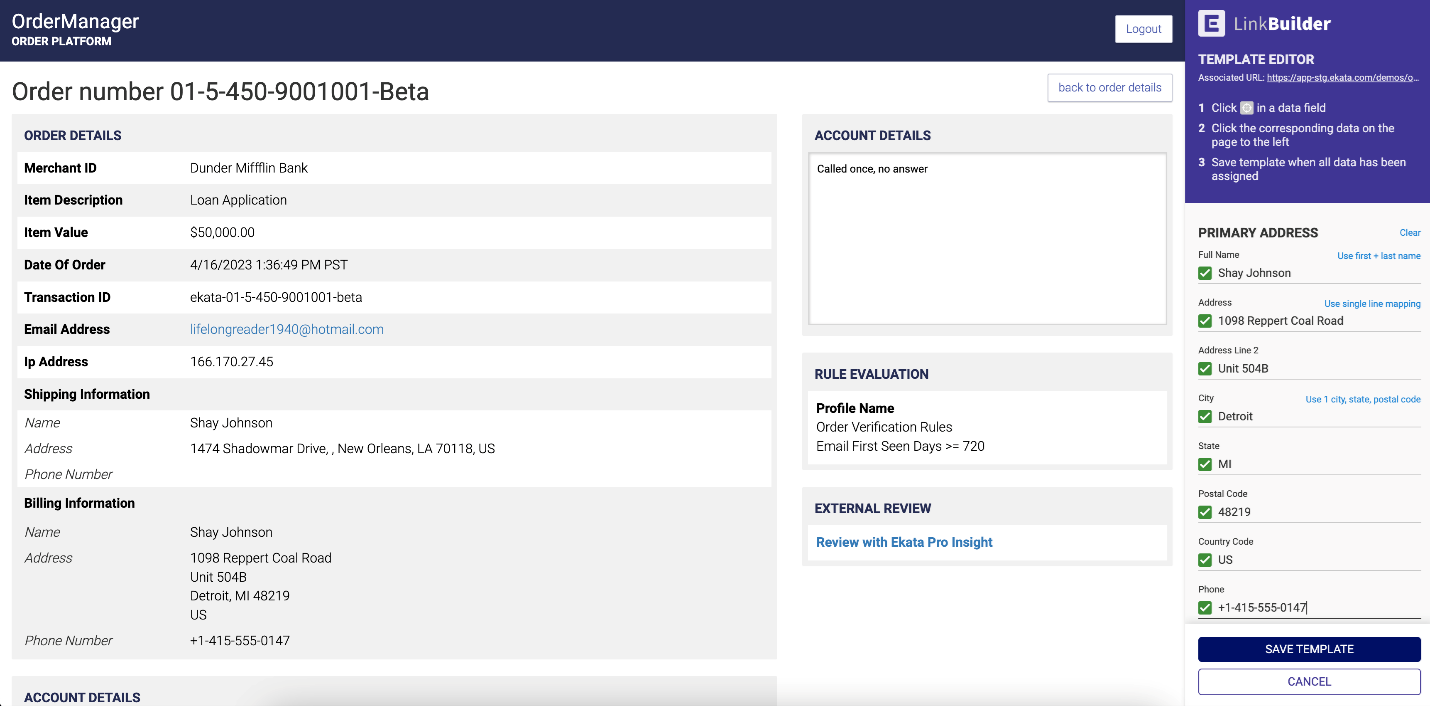
4. To pass the information to the data field in the template editor, simply click on any of the data fields and then click on the respective information in your platform associated to the data field. See example below:
5. If you applied incorrect information into the data field and would like to remove it, you can hover over the check mark next to the data field and an “X” button will appear.
6. Once finished editing your builder, save the template by clicking on the “Save Template” button to complete the process.
7. Finally, click on the “Review” button to verify the authenticity of this identity.
8. You will be taken to an Identity Review result page that returns the data and match statues on the submitted input attributes (phone, email, IP, name and/or address).