Published: May 23, 2024 | Updated: November 22, 2024
Identity Review 360 is the only global identity review solution that provides six ways to search, robust analytics and admin tools, direct workflow integrations, and a clear and focused user experience.
Manual review team admins have access to the reporting and analytics tools that Identity Review 360 provides. In this article, we’ll go through user roles as well as how to manage users, reset user passwords, invite new users, and restore deleted users.
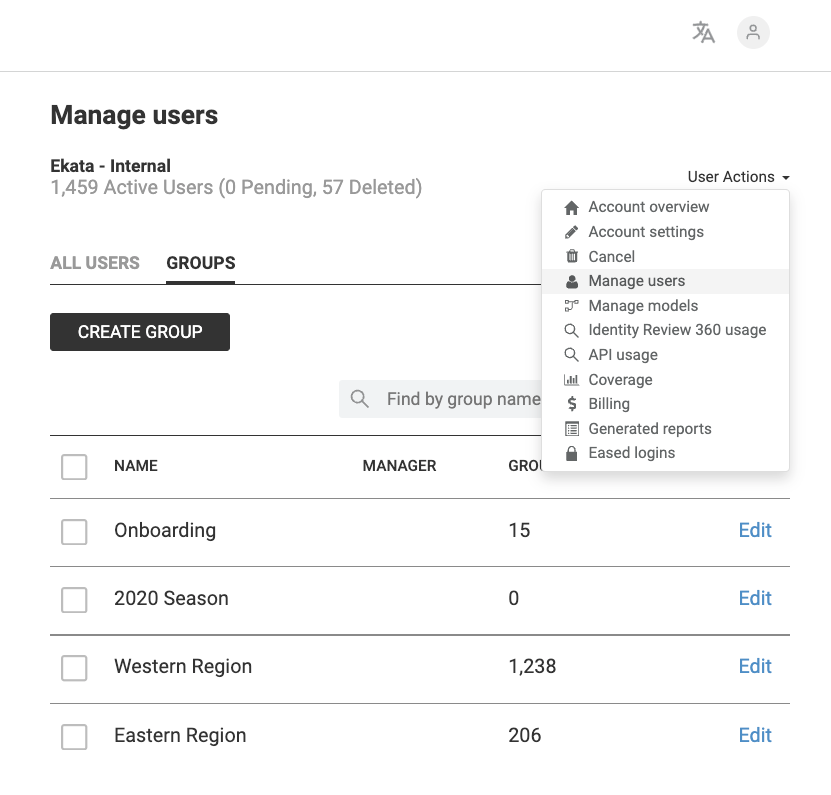
Admins can manage individual user permission levels under Account settings. To access Account settings, click the drop-down arrow next to your profile image in the top right corner of your Identity Review 360 account.
Once you are in Account settings, click Manage users from the menu on the left. Manage users has three sections: Active users, Invite users, and Deleted users.
When you click on active users, you will view a searchable list of active users. To set user permission roles or to send a password reset link, navigate to the user name and click edit.
To invite new users to your account or to search for pending invites by name or email, click the Invite users tab and enter their name, email address, and role. The user will show as a pending invite until the invite is accepted. Each invite expires in 10 days. If the invite expires or is not received, click on the Resend link to send a new invite to join the account.
Deleted users can be found on the Deleted users tab. To restore access for a deleted user, click the Restore link.