An easy, secure, and private way to pay.

Apple Pay lets you make purchases with your Mastercard using any Apple device — just like you would with your physical card — in stores, online, and in apps.

Apple Pay on one. Apple Pay on all.

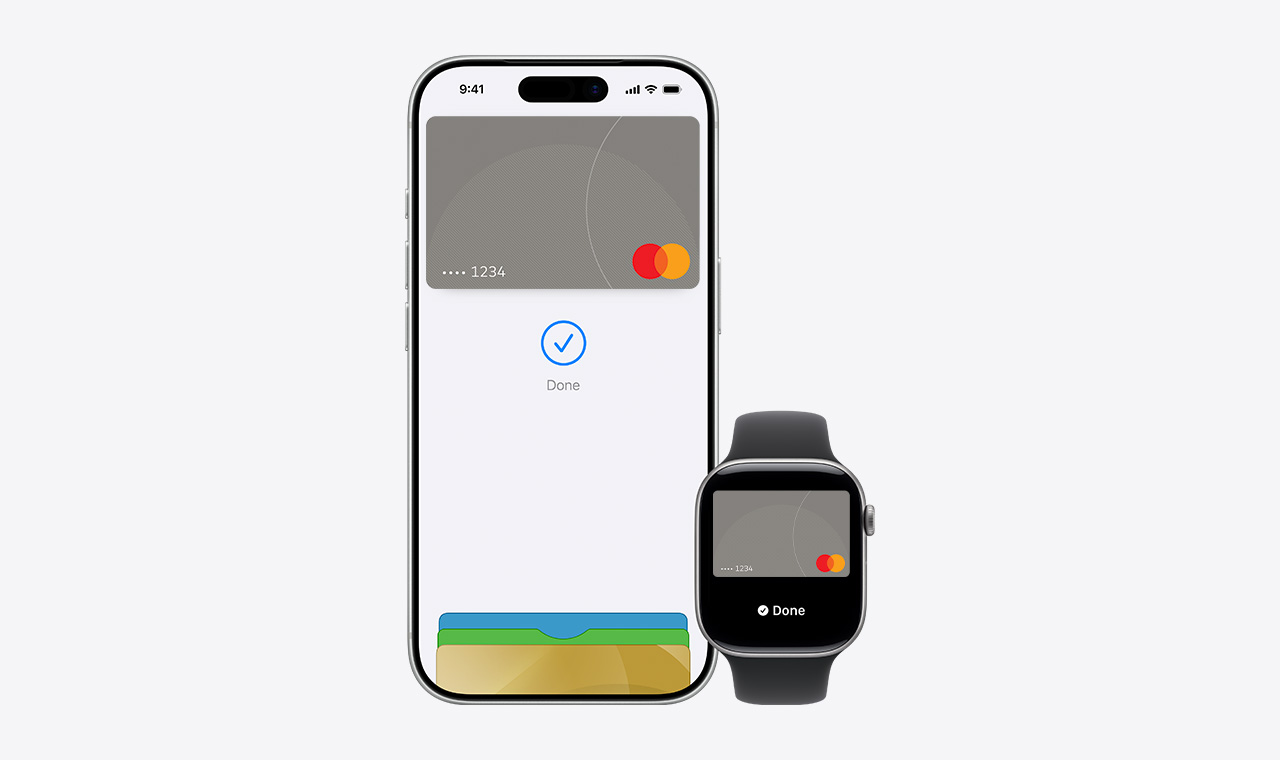
Apple Pay is built into iPhone, Apple Watch, Mac and iPad.

If you add your Mastercard to Apple Wallet on iPhone, you'll have the option to add it to your other Apple devices in one easy step. 

apple watch and phone

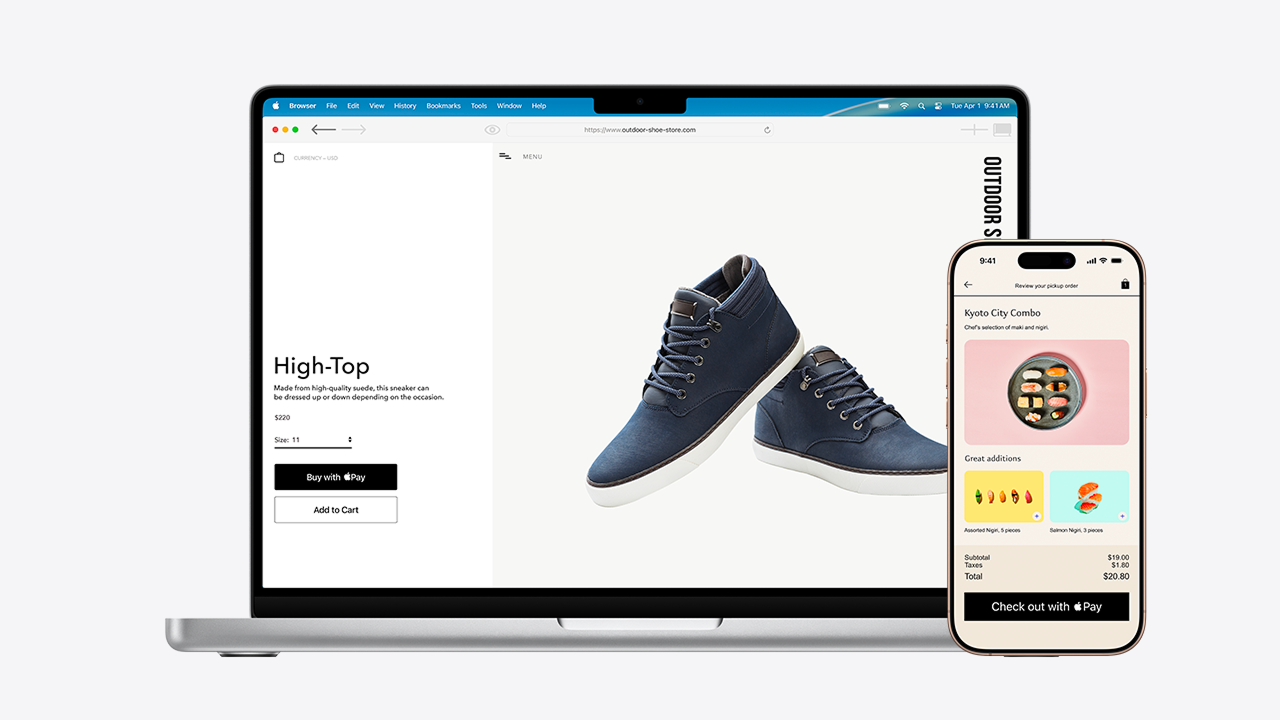
Shop in person. Online. Or in apps.

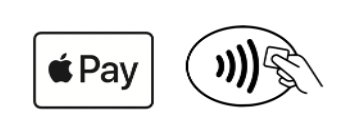
Apple Pay is accepted by millions of merchants around the world. Just look for or the contactless payment symbol at checkout and pay with your Mastercard.

To check out with Apple Pay if you're on a computer but not using Safari or a Mac, click the button and scan the code that appears onscreen with your iPhone.

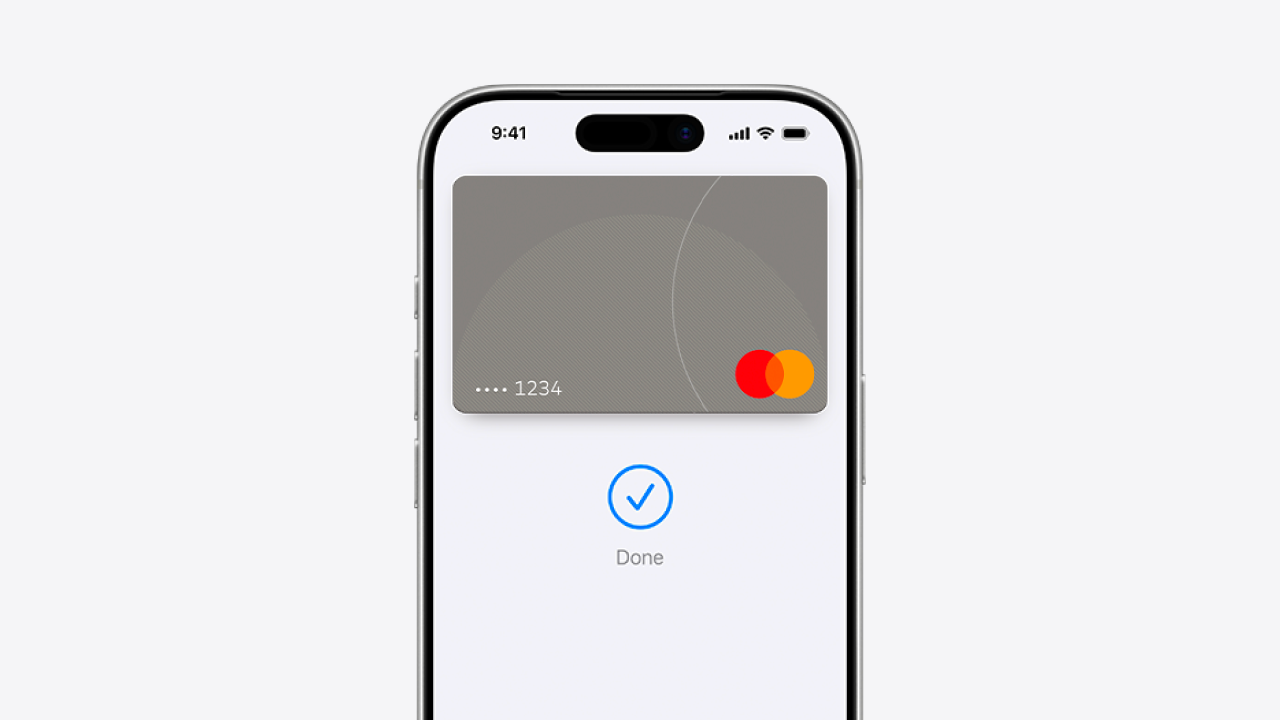
apple phone

Tap. Pay. Done.

Apple Pay lets you skip entering your address or CVC code at checkout — so you can pay with your Mastercard with a simple glance or touch.

apple laptop and phone

Designed to be secure. So only you can pay.

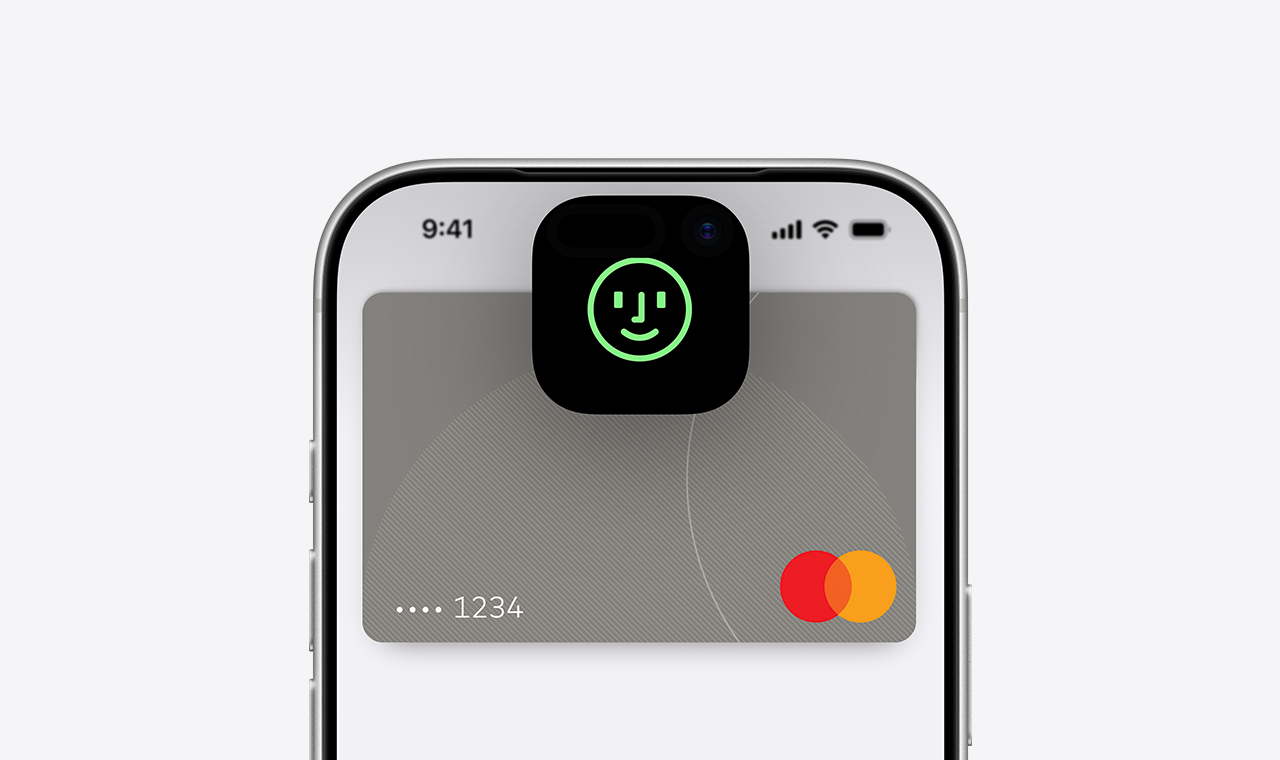
Every Apple Pay transaction requires authentication through your device's built-in security features — including Face ID, Touch ID, and your passcode.

Your debit or credit card number is never shared with merchants or stored on Apple servers. And if you misplace your iPhone, you can quickly mark it as lost on Find My to suspend your card.

apple wallet biometric

Add your Mastercard in a few steps.

The card benefits you love with Apple Pay.

When you use your Mastercard with Apple Pay, you'll get the benefits and rewards you love — just like you would with your physical card.

Frequently asked questions

Now you can add your Mastercard credit and debit cards to Apple Wallet – including physical and virtual cards, primary and supplementary cards, individual and corporate cards.

You need to meet the following conditions to add a card to Apple Wallet:

·       You are an eligible Cardholder of Mastercard.

·       You have registered your phone number to receive OTP from Mastercard.

·       Your card used to add to Apple Wallet must be in valid and active status.

·       You have a compatible Apple Pay device. For a list of compatible Apple Pay devices, see support.apple.com/km207105.

No. Mastercard does not charge a fee for customers to use Apple Pay.

·       Using the Mastercard App: Log in to the Mastercard App, select the "Apple Pay" shortcut, find the card you'd like to add, then tap "Add to Apple Wallet" and follow the steps to add a new card.

·       Using the Apple Wallet App: Enter your card information (e.g. card number, cardholder name, expiration date, CVC) as prompted and follow the steps to complete adding the card to Apple Wallet.

Compatible devices and OS versions are updated by Apple from time to time. For the current list of compatible iPhone and Apple Watch models, see: https://www.apple.com/ph/ios/feature-availability/#apple-wallet-apple-pay

You can confirm your card has been added to Apple Wallet successfully if:

·       Your card art appears on the Apple Wallet app screen.

·       You have received a notification (SMS or app notification) from Mastercard confirming your card has been added successfully to Apple Wallet.

If you're using the Mastercard App, tap the "Apple Pay" shortcut on the home screen. You'll be invited to issue a Mastercard virtual card free of issuance fees. At the end of the issuance process, tap "Continue" to go to the Card Details screen, where you'll see an "Add to Apple Wallet" button under your new card art. Tap that button and follow the steps to add the card to Apple Wallet.

This may be due to one of the following reasons:

·       You have entered incorrect card information; or

·       Your card information is not valid (non-eligible card product, card is locked, expired card, etc.); or

·       Your Apple device may not be supported or not running the supported OS version.

·       If the reason relates to incorrect card information: recheck your card information carefully.

·       If the reason relates to card status, card validity, or a high-risk device: please contact Mastercard's Hotline at 1-800-1-111-0061 for support.

If you have not completed your provisioning transaction, or your transaction was unsuccessful, Mastercard will send you this message to remind you to complete it.

On your iPhone, open the Wallet app, select the relevant card, tap the icon to view the card details, then scroll down and select "Remove Card." For more details, see Apple's instructions here: https://support.apple.com/HT205583

Yes, you can re-provision the card.

No — each device holds its own separate token.

Apple Pay on Apple Watch is set up through the Apple Wallet app on an iPhone paired to the Apple Watch. If the Apple Watch is no longer paired with the iPhone, the card added to Apple Watch will be deleted.

You can use Apple Pay wherever contactless payments are accepted or you see the contactless symbol, or Apple Pay logo below. 

For more details, you can make secure purchases in stores, within selected apps and on participating websites.

See https://support.apple.com/HT201239#stores to learn how to pay in stores.
See https://support.apple.com/HT201239#inapp to learn how to pay in apps.

Depending on the verification method you've set up on your device, you can verify your payment using Face ID, Touch ID, or your passcode.

No, there is no transaction limit when using Apple Pay.

You'll see a tick mark with the "Done" message on your iPhone regardless of whether the transaction was successful or declined. Check with the merchant or your transaction history to confirm the actual result.

You will receive a notification from Mastercard (via SMS or OTT messaging) for both successful and unsuccessful transactions.

·       Contact Mastercard (Hotline: 1-800-1-111-0061) as soon as possible to get support — this includes locking or deleting cards on Apple Wallet, as well as temporarily locking access to the Mastercard App.

·       Alternatively, sign in to icloud.com/find using the same Apple ID linked to your device, or use the "Find My" app on another Apple device, to locate your device and mark it as lost. This will remotely lock the device and disable Apple Pay.

When you mark your device as lost, all cards added to Apple Wallet are suspended. If you locate your device, enter your passcode to unlock it, then enter your Apple ID password to reactivate the suspended cards. If you've erased your device completely, you'll need to add the cards back in again.

◊ Legal Disclaimers

Apple Pay in More Browsers: Available with participating merchants on compatible browsers. Compatible browsers require WebSocket support. This feature is not available in all markets. Software requirements apply. To ensure you have all features of this product, update your iPhone or iPad to the latest software version.

Apple Pay is a service provided by Apple Payments Services LLC, a subsidiary of Apple Inc. Neither Apple Inc. nor Apple Payments Services LLC is a bank. Any card used in Apple Pay is offered by the card issuer.

To use Apple Pay, you need a supported card from a participating card issuer. To check if your card is compatible with Apple Pay, contact your card issuer.

Apple Pay is not available in all markets. See apple.com/ios/feature-availability/#apple-pay for more information.

Features are subject to change. Some features, applications, and services may not be available in all regions or all languages and may require specific hardware and software. See apple.com/ios/feature-availability/#apple-pay for more information.